Run a hub
A hub is the meeting point for a group: it knows who’s in it, what they share (names, sizes and who may see them, never the files), and introduces computers to each other. A small Linux machine or container is plenty.
What it needs
- A Linux machine with Node.js 24 or later (or Docker).
- A domain name pointing at it, and a TLS certificate for that name (for example from Let’s Encrypt).
- These ports forwarded from your router: TCP 443 for the hub, UDP 3478 and 3479 so the hub can tell each computer what kind of network it’s on, and TCP 80 if you get certificates with certbot’s HTTP check.
The hub must see each computer’s real address, so it handles TLS itself: don’t put it behind a reverse proxy.
Install
The quickest way installs the latest release, or upgrades to it after backing up the hub’s data (it needs Node.js 24 or later):
curl -fsSL https://hypnopompia.github.io/Communal/install.sh | sh -s -- hub
Or by hand: download communal-hub-<version>.tar.gz from the
latest release,
then:
tar xzf communal-hub-*.tar.gz
cd communal-hub-*
sudo ./install.sh
That installs the hub to /opt/communal-hub with its data in
/var/lib/communal-hub, and sets up the communal-hub systemd
service. Its settings are in /etc/communal-hub/communal-hub.env: the port
(443), the NAT probe ports, the certificate files and the join mode.
Certificate
With certbot, a renewal hook copies each new certificate where the hub reads it and restarts the hub:
sudo apt install certbot
sudo mkdir -p /etc/letsencrypt/renewal-hooks/deploy
sudo tee /etc/letsencrypt/renewal-hooks/deploy/communal-hub.sh >/dev/null <<'EOF'
#!/bin/sh
set -e
src=/etc/letsencrypt/live/hub.example.com
install -o communal-hub -g communal-hub -m 0644 "$src/fullchain.pem" /etc/communal-hub/tls/fullchain.pem
install -o communal-hub -g communal-hub -m 0600 "$src/privkey.pem" /etc/communal-hub/tls/privkey.pem
systemctl restart communal-hub
EOF
sudo chmod +x /etc/letsencrypt/renewal-hooks/deploy/communal-hub.sh
sudo certbot certonly --standalone -d hub.example.com \
  --deploy-hook /etc/letsencrypt/renewal-hooks/deploy/communal-hub.sh
People then join with the address hub.example.com; the app fills in the rest
(wss://hub.example.com/v1).
Who can join
Join your new hub first. The first account on a hub becomes its admin, and it’s let in straight away. After that, a new hub is in approval mode: each new account waits until you let it in. Admin commands work on the database while the hub runs:
sudo runuser -u communal-hub -- env COMMUNAL_HUB_DATA=/var/lib/communal-hub /usr/local/bin/communal-hub users
sudo runuser -u communal-hub -- env COMMUNAL_HUB_DATA=/var/lib/communal-hub /usr/local/bin/communal-hub approve <user_id>
sudo runuser -u communal-hub -- env COMMUNAL_HUB_DATA=/var/lib/communal-hub /usr/local/bin/communal-hub ban <user_id> --reason "…"
sudo runuser -u communal-hub -- env COMMUNAL_HUB_DATA=/var/lib/communal-hub /usr/local/bin/communal-hub set join_mode open
sudo runuser -u communal-hub -- env COMMUNAL_HUB_DATA=/var/lib/communal-hub /usr/local/bin/communal-hub set name "Hunter family"
sudo runuser -u communal-hub -- env COMMUNAL_HUB_DATA=/var/lib/communal-hub /usr/local/bin/communal-hub get
sudo runuser -u communal-hub -- env COMMUNAL_HUB_DATA=/var/lib/communal-hub /usr/local/bin/communal-hub admin add <user_id>
sudo runuser -u communal-hub -- env COMMUNAL_HUB_DATA=/var/lib/communal-hub /usr/local/bin/communal-hub log
Admins can do all of this in the app as well: Settings › Hubs › Manage.
admin list|add|remove chooses who administers the hub. Only these commands
can make or remove admins. If someone else joined first, add yourself and remove them.
log shows every admin action, from the command line or an admin’s app.
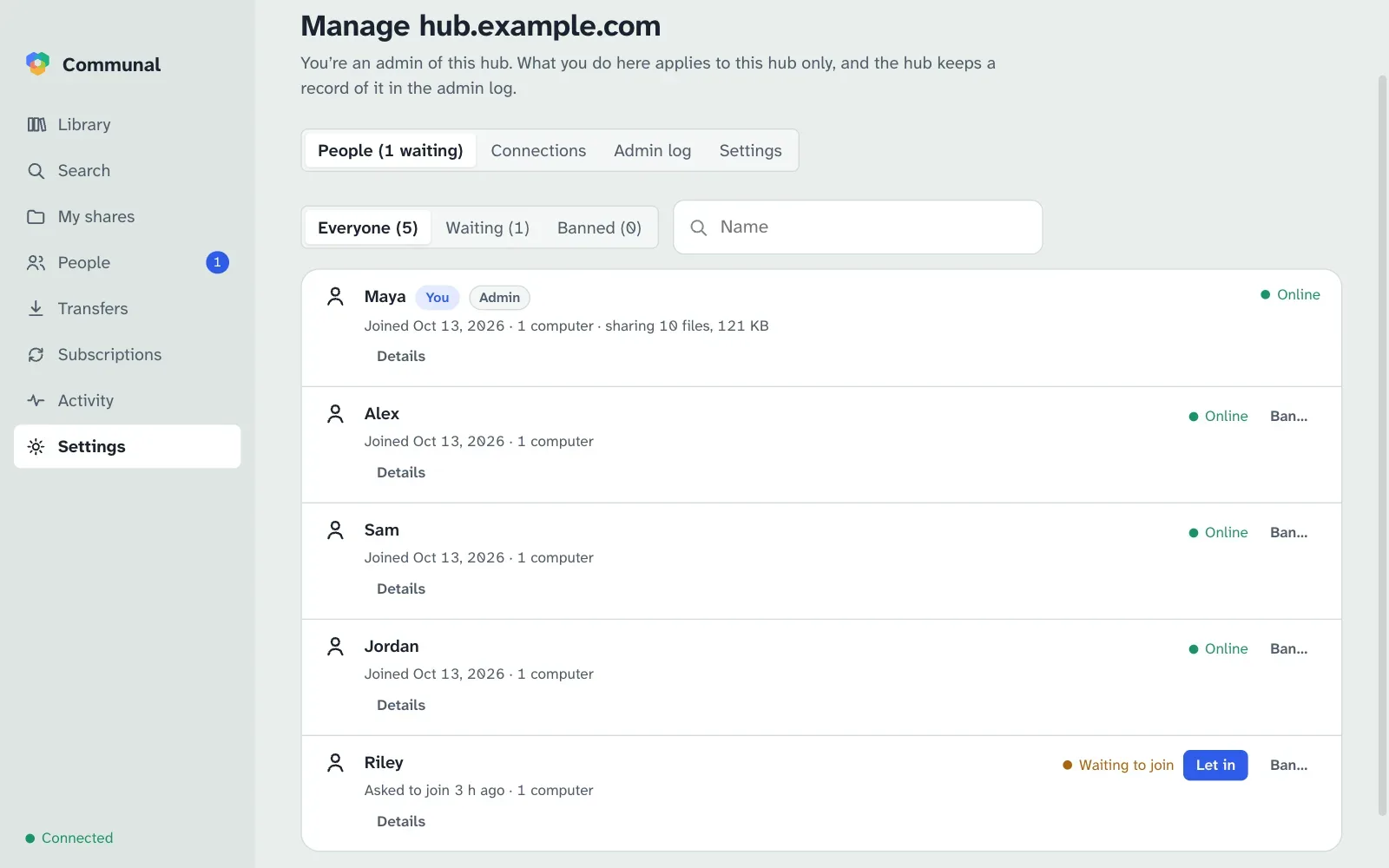
The name is what people see in the app instead of the hub’s address. Clients pick it up the next time they connect.
With join_mode open anyone who knows the address can join. Since accounts
need no email, a banned person can come back with a new key on an open hub; use approval
mode if that matters. unban <user_id> lifts a ban, and
get shows every setting.
Limits
A hub limits how much any one person or address can ask of it, so a misbehaving client
can’t take it over. Three of the limits are settings, changed with
communal-hub set <key> <n> or in the app under Manage › Settings,
where 0 means no limit:
-
signups_per_hour(20): new accounts and new devices from one internet address in an hour. An IPv6 /64 counts as one address. max_files_per_device(1,000,000): files one computer may list.max_devices_per_account(20): computers and phones per account.
The rest are fixed, such as how many connections one address may hold open. A client that sends too much is slowed down rather than refused, so older apps keep working. Every change to the settings goes in the admin log.
Docker
Every release publishes the hub as a ready-made image,
ghcr.io/hypnopompia/communal-hub, for 64-bit Intel/AMD and ARM. It has
Node.js and everything else inside: you don’t install anything but Docker. Use the
latest tag, or a version such as 0.1.12 to pin one.
Linux only. The hub works out each computer’s network from the address its connections come from, on TCP 443 and UDP 3478–3479. Docker Desktop (on Windows, macOS and Linux alike) runs containers in a virtual machine and passes every connection on from its own address, so the hub would see one internal address (such as 192.168.65.1) for everyone and couldn’t introduce computers to each other. Run a hub on a Linux machine with Docker Engine, not with Docker Desktop.
What you need
-
A Linux machine with Docker Engine and its Compose plugin (install guide), and certbot (
sudo apt install certbot). - A domain name pointing at your home’s public address, such as hub.example.com.
- On your router, forward TCP 80 and 443 and UDP 3478 and 3479 to this machine.
1. Make a folder for the hub
Everything lives in one folder: the settings, the hub’s data and its certificate. The hub runs as user 1000 inside the container, so it needs to own the two subfolders.
mkdir ~/communal-hub && cd ~/communal-hub
mkdir data tls && sudo chown 1000:1000 data tls
Save this as compose.yml in that folder. It uses the machine’s own network,
so the hub sees everyone’s real address:
services:
  hub:
    image: ghcr.io/hypnopompia/communal-hub:latest
    container_name: communal-hub
    restart: unless-stopped
    network_mode: host
    volumes:
      - ./data:/data
      - ./tls:/tls:ro
    environment:
      COMMUNAL_HUB_PORT: '443'
      COMMUNAL_TLS_CERT: /tls/fullchain.pem
      COMMUNAL_TLS_KEY: /tls/privkey.pem
      COMMUNAL_JOIN_MODE: approval
COMMUNAL_JOIN_MODE: approval means you approve each new person; use
open to let anyone with the address join. It’s only read on the first start
(see Who can join).
2. Get a certificate
certbot keeps its files readable only by root, so a small script copies the certificate
into tls/ for the hub and restarts it. Save it as
copy-cert.sh in the same folder:
#!/bin/sh
# certbot runs this after each new certificate, with RENEWED_LINEAGE set.
set -e
cd "$(dirname "$0")"
install -o 1000 -g 1000 -m 0644 "$RENEWED_LINEAGE/fullchain.pem" tls/fullchain.pem
install -o 1000 -g 1000 -m 0600 "$RENEWED_LINEAGE/privkey.pem" tls/privkey.pem
docker restart communal-hub >/dev/null 2>&1 || true
Then get the certificate, with your own domain. certbot runs the script now and again after every renewal, so you never copy it by hand:
chmod +x copy-cert.sh
sudo certbot certonly --standalone -d hub.example.com --deploy-hook "$PWD/copy-cert.sh"
3. Start the hub
docker compose up -d
docker compose logs
The logs should say hub listening. From another network (your phone off
Wi-Fi, say), https://hub.example.com/healthz should answer with
{"ok":true,…}.
4. Join it
In Communal, add the hub by its address (hub.example.com). The first account
to join becomes its admin, so join from your own computer before you share the address.
You can then manage it from Settings › Hubs › Manage.
Admin commands
The admin commands also work from the host while the hub runs:
docker exec communal-hub communal-hub users
docker exec communal-hub communal-hub approve <user_id>
docker exec communal-hub communal-hub set name "Hunter family"
docker exec communal-hub communal-hub admin add <user_id>
docker exec communal-hub communal-hub log
Backing up and upgrading
The hub’s key and database are in data/: back that folder up. A new version
updates the database the first time it starts, so take a backup before you upgrade. From
the hub’s folder:
docker compose pull
docker compose down
sudo tar czf "hub-data-$(date +%Y%m%d).tar.gz" data
docker compose up -d
To stay on one version, replace latest in compose.yml with a
version number, such as 0.1.12.
Without host networking
If you’d rather not use network_mode: host, publish the ports instead. On
Linux, Docker still passes on each client’s real address over IPv4. In
compose.yml, replace the network_mode line and
COMMUNAL_HUB_PORT with
ports: ['443:8443/tcp', '3478:3478/udp', '3479:3479/udp']. Keep the UDP ports
the same on both sides. Don’t do this if your domain also has an IPv6 address: Docker
would hide the real addresses of IPv6 clients.
What a hub knows
The hub stores accounts (display name and public key), connections, groups, access rules, and the names, sizes and types of shared files. It never stores files, thumbnails or download history, and it never relays transfers. In the app, its admins can see who is on the hub, who is connected to whom, and how many files each computer shares, but not file names, groups or who can see what. Whoever runs the server can read everything the hub stores.